Quick answer
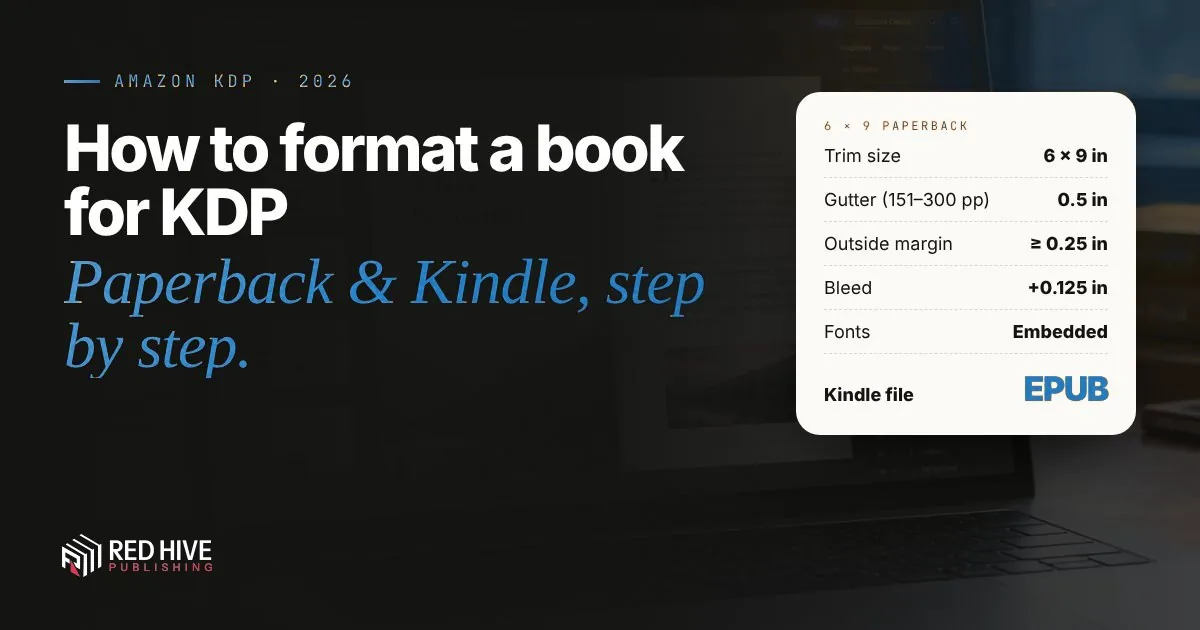
How to format a book for KDP: for a paperback, set your page to your trim size (6 × 9 inches is most common), use a gutter of 0.375–0.875 inches depending on page count, keep outside margins at least 0.25 inches, embed all fonts and export a PDF. For a Kindle ebook, use real heading styles, remove manual spacing and page numbers, and upload an EPUB, DOCX or Kindle Create (KPF) file. Then check every page in KDP’s Previewer before you publish.
Formatting is where most first-time KDP uploads go wrong. The writing is finished, the cover looks great, and then Print Previewer flags text in the margins, fonts that aren’t embedded, or a page size that doesn’t match your trim. This guide gives you the exact settings for paperbacks and ebooks, the order to do things in, and the fixes for the errors that get files rejected.
Key takeaways
- Paperbacks and ebooks need different files. Print is a fixed PDF; Kindle is reflowable text.
- Choose your trim size first. Margins, page count and cover size all depend on it.
- The gutter grows with page count, from 0.375 inches up to 0.875 inches.
- Bleed is only for images or colour that reach the edge, and it adds 0.125 inches on three sides.
- Upload ebooks as EPUB, DOCX or KPF. MOBI is no longer accepted.
Before you format: finish the text
Format last. Every edit after layout can push lines onto new pages, break your table of contents and change your page count, which changes your margins and your cover’s spine width. Make sure the manuscript is edited and proofread first. If it isn’t, start with a professional proofread; it costs far less than redoing a layout.
Then decide two things: which formats you’re publishing (most authors do a Kindle ebook and a paperback, sometimes a hardcover), and which tool you’ll use. Kindle Create (free from Amazon) handles text-only books well. Word works if you’re careful with styles. Dedicated tools like Vellum or Atticus, or professional layout in InDesign, give the most control for complex books.
How to format a paperback for KDP
1. Choose your trim size
Trim size is the finished size of your book. It sets everything else, so pick it first and don’t change it later.
| Trim size | Typical use |
|---|---|
| 5 × 8 in | Novels, poetry, shorter books |
| 5.5 × 8.5 in | Novels, memoirs, self-help |
| 6 × 9 in | Most nonfiction and many novels; the most common US size |
| 7 × 10 in | Workbooks, textbooks, image-heavy guides |
| 8.5 × 11 in | Workbooks, journals, children’s activity books |
In your layout tool, set the page size to your trim size. If you’re using bleed (step 3), the page is slightly larger. KDP also offers free Word templates for each trim size, which is a safe starting point.
2. Set margins and the gutter
The gutter is the inside margin, next to the spine. Thicker books curve more at the spine, so KDP requires a wider gutter as page count goes up:
| Page count | Minimum inside margin |
|---|---|
| 24–150 pages | 0.375 in (9.6 mm) |
| 151–300 pages | 0.5 in (12.7 mm) |
| 301–500 pages | 0.625 in (15.9 mm) |
| 501–700 pages | 0.75 in (19.1 mm) |
| 701–828 pages | 0.875 in (22.3 mm) |
Outside margins (top, bottom and the outer edge) must be at least 0.25 inches without bleed and 0.375 inches with bleed, according to KDP’s trim, bleed and margin guide. Those are minimums. Most professionally set books use 0.5 to 0.75 inches outside, which looks less cramped and keeps text away from readers’ thumbs.
Tip: estimate your final page count before setting the gutter. If you’re close to a boundary (say 290 pages), use the larger gutter so a few extra pages later don’t make the file non-compliant.
3. Decide on bleed
You only need bleed if images, colour blocks or backgrounds run to the edge of the page. Bleed extends the page by 0.125 inches on the top, bottom and outside edges, so the printer can trim cleanly. For a 6 × 9 inch book with bleed, set the page to 6.125 × 9.25 inches and let edge images extend fully into the bleed area. Text-only books should be set up without bleed.
4. Build a clean interior
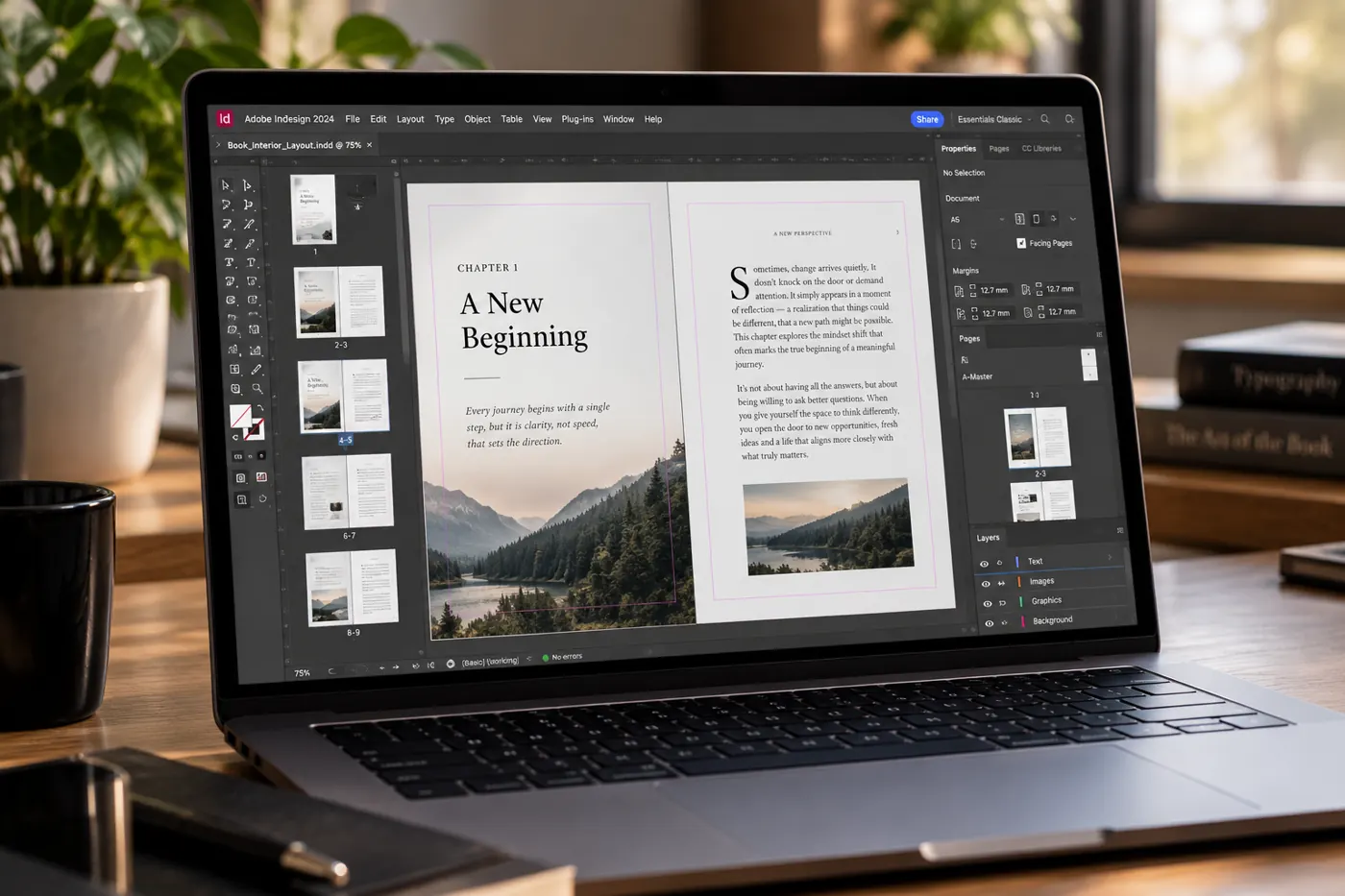
- Body text: a readable serif such as Garamond, Minion or Palatino at 10–12 pt, with line spacing around 1.2–1.4.
- Chapter openings: start each chapter on a new page (many books start on a right-hand page), with consistent spacing above the title.
- Front matter: title page, copyright page (with your ISBN), optional dedication and table of contents, in that order.
- Headers and page numbers: omit them on chapter openers and blank pages, which is standard in traditionally published books.
- Paragraphs: indent first lines instead of adding space between paragraphs, and don’t indent the first paragraph of a chapter.
- Widows and orphans: avoid single lines stranded at the top or bottom of a page.
5. Export a print-ready PDF
Export at your exact page size with all fonts embedded and images at 300 DPI. Use your app’s high-quality print or PDF/X-1a preset if it has one. Before uploading, open the PDF and check under Document Properties > Fonts that every font says “Embedded”.
How to format a Kindle ebook
Ebooks work differently: readers change the font, size and screen, so text has to reflow. Anything that fixes text in place breaks on some devices.
- Use heading styles for chapter titles. Kindle builds the navigation from them, so readers can jump between chapters.
- Remove manual formatting. No tabs or spaces for indents, no blank lines to push text down, no manual page breaks except between chapters.
- Delete page numbers, headers and footers. They don’t exist on a Kindle.
- Add a linked table of contents at the front, or let Kindle Create generate one.
- Resize images sensibly. Use clear JPGs, keep them inline with the text, and avoid text inside images where you can.
- Save in an accepted format. KDP recommends EPUB, DOCX or KPF. MOBI is no longer supported for new uploads.
Books that rely on layout, such as cookbooks, children’s picture books and heavily illustrated guides, often need a fixed-layout ebook instead. These take more work and are usually best built by a professional formatter.
Skip the trial and error
Print and Kindle files that pass review, from $150
Our formatters build your paperback PDF, hardcover and Kindle files to KDP’s specs, with clean typography and a layout that looks traditionally published. Formatting is also included in every publishing package, from $199. You keep 100% of your rights and royalties.
Check everything in the Previewer
After uploading, KDP’s Previewer shows your book as readers will see it and flags problems. Go through every page, not just the first chapter. Print Previewer mainly checks margins, page size, bleed and fonts; for ebooks, test the Kindle preview on a phone, tablet and Kindle view.
For a paperback, also order a printed proof before you publish. You only pay printing and shipping, and holding the book is the only way to judge margins, font size and image quality properly. Our guide to publishing a book on Amazon covers the full upload process.
Common KDP formatting errors and how to fix them
| Error | Usual cause | Fix |
|---|---|---|
| Content outside margins | Gutter too small for the page count, or images too close to the edge | Increase the gutter to match the page count table; move content inside the margins |
| Page size doesn’t match trim | Document set to Letter/A4, or bleed set up inconsistently | Set the page to the trim size (plus bleed if used) before exporting |
| Fonts not embedded | Export settings, or a font that doesn’t allow embedding | Re-export with fonts embedded; switch to a commercially licensed font |
| Low-resolution images | Web images used in print | Replace with 300 DPI images at the printed size |
| Blank or extra pages | Stray page breaks or section breaks | Remove extra breaks; check the page count matches what you expect |
| Broken Kindle layout | Tabs, spaces and manual line breaks | Replace with styles; rebuild the file in Kindle Create or as EPUB |
KDP’s own guide to fixing paperback formatting issues lists the full set of Previewer messages.
Don’t forget the cover depends on the interior
A paperback cover is a single wrap: back, spine and front. The spine width is calculated from your page count and paper type, so the cover can only be finished once the interior is final. If you change the page count later, the cover has to be resized too. That’s why we finish formatting before final cover design on every project.
Format it yourself or hire a formatter?
Doing it yourself makes sense for a text-only novel or nonfiction book: Kindle Create or a KDP template, careful styles and a printed proof will get you a clean result. Hiring help makes sense when the book has images, tables, footnotes, workbook pages or a fixed-layout ebook, or when you want an interior that matches traditionally published books in your genre.
Whichever route you choose, budget formatting alongside editing and cover design. Our guide to self-publishing costs shows typical prices, and our publishing packages bundle formatting with proofreading, a free 3D cover and upload.
The bottom line
Knowing how to format a book for KDP comes down to a few decisions made in the right order: finish the edit, choose your trim size, set the gutter for your page count, use bleed only if you need it, embed your fonts, and build a separate reflowable file for Kindle. Then check every page in the Previewer and hold a printed proof before you publish.
Want files that pass first time? Tell us about your book and we’ll send a free, written formatting quote within one business day.
Frequently asked questions
What is the best trim size for a KDP paperback?
6 × 9 inches is the most common trim size for paperbacks in the US and works well for most nonfiction and many novels. Shorter novels often use 5.5 × 8.5 or 5 × 8 inches. Look at bestsellers in your genre and match them, because readers notice books that feel the wrong size.
What margins does KDP require?
The inside margin (gutter) depends on page count: 0.375 inches for 24–150 pages, 0.5 for 151–300, 0.625 for 301–500, 0.75 for 501–700 and 0.875 for 701–828. Outside margins must be at least 0.25 inches without bleed and 0.375 inches with bleed. Most books look better with more than the minimum, around 0.5 to 0.75 inches.
Do I need bleed for my KDP book?
Only if images or colour run to the edge of the page. Bleed adds 0.125 inches to the top, bottom and outside edges, so a 6 × 9 book with bleed uses a 6.125 × 9.25 inch page. Text-only books don’t need bleed.
What file should I upload for a Kindle ebook?
KDP recommends EPUB, DOCX or KPF (the format Kindle Create produces). MOBI is no longer accepted. A clean Word file with proper heading styles converts well for text-only books; books with complex layouts are usually better built as EPUB.
Can I use the same file for my paperback and Kindle ebook?
Not as-is. A paperback needs a fixed PDF at your trim size with margins, page numbers and headers, while an ebook needs reflowable text that adapts to any screen, without page numbers or fixed line breaks. You can start from the same edited manuscript, but you build two different files.
Why does KDP say my fonts aren’t embedded?
The PDF was exported without fully embedding every font, or a font’s licence doesn’t allow embedding. Re-export with fonts embedded (PDF/X-1a or your app’s high-quality print setting), check under Document Properties > Fonts in a PDF reader, or switch to a font licensed for commercial use.
How much does professional book formatting cost?
Simple text-only books are usually formatted for a few hundred dollars, while books with images, tables or complex layouts cost more. Our book formatting service starts from $150, and formatting is included in all our publishing packages.

Our editors, designers and KDP specialists publish books for independent authors every week. This guide reflects the prices and Amazon rules we work with daily, and we update it when they change. More about us.